Modifying HTML Source
Confluence produces HTML that is full of CSS customisation. This may be working perfectly well in Confluence, but when content is moved to other systems, it creates web pages with a lot of redundant code.
Moreover, Confluence plug-ins add their own html code making the pages even more complex with unnecessary tags and identifiers.
In Conflux, you can define rules that will be applied before the export of the pages and modify the source to suit your needs.
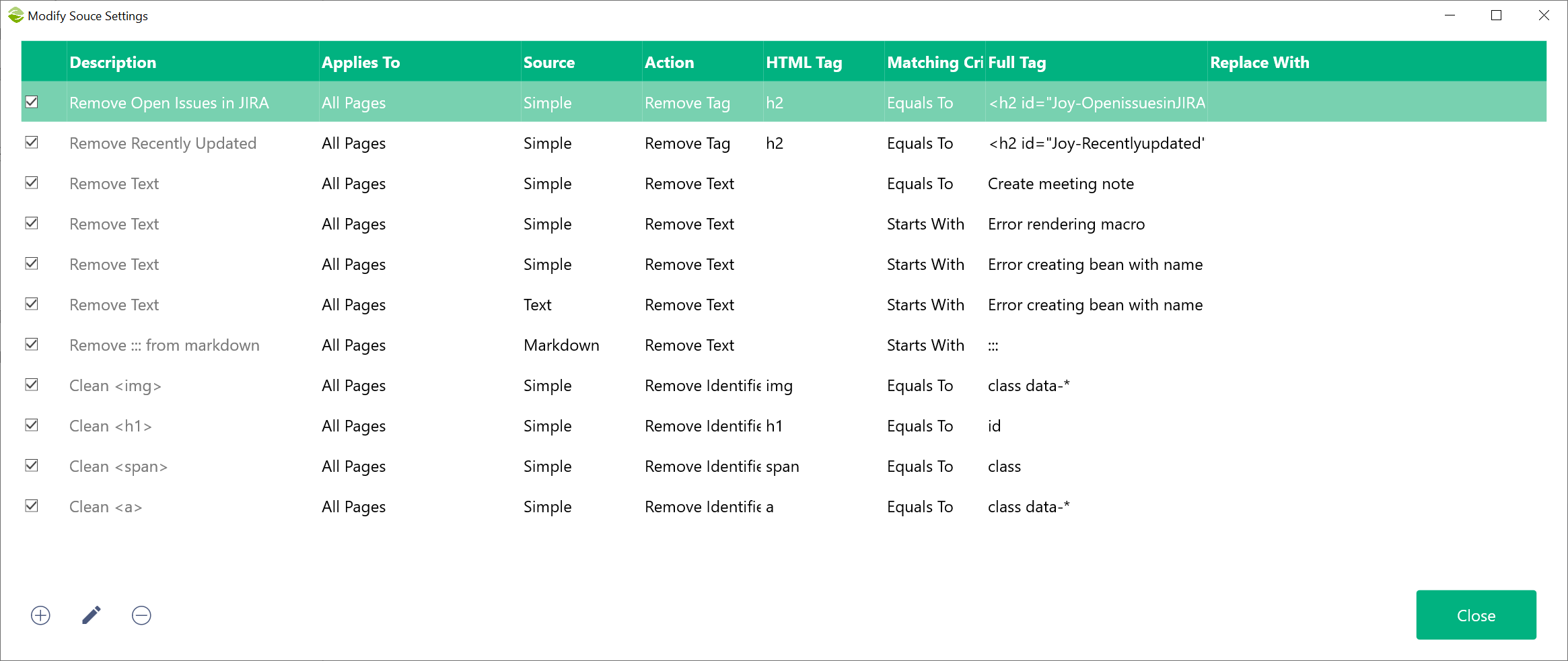
You can use the buttons at the bottom to add, edit or delete rules.
When a new rule is created or an existing one is edited, the following form appears.
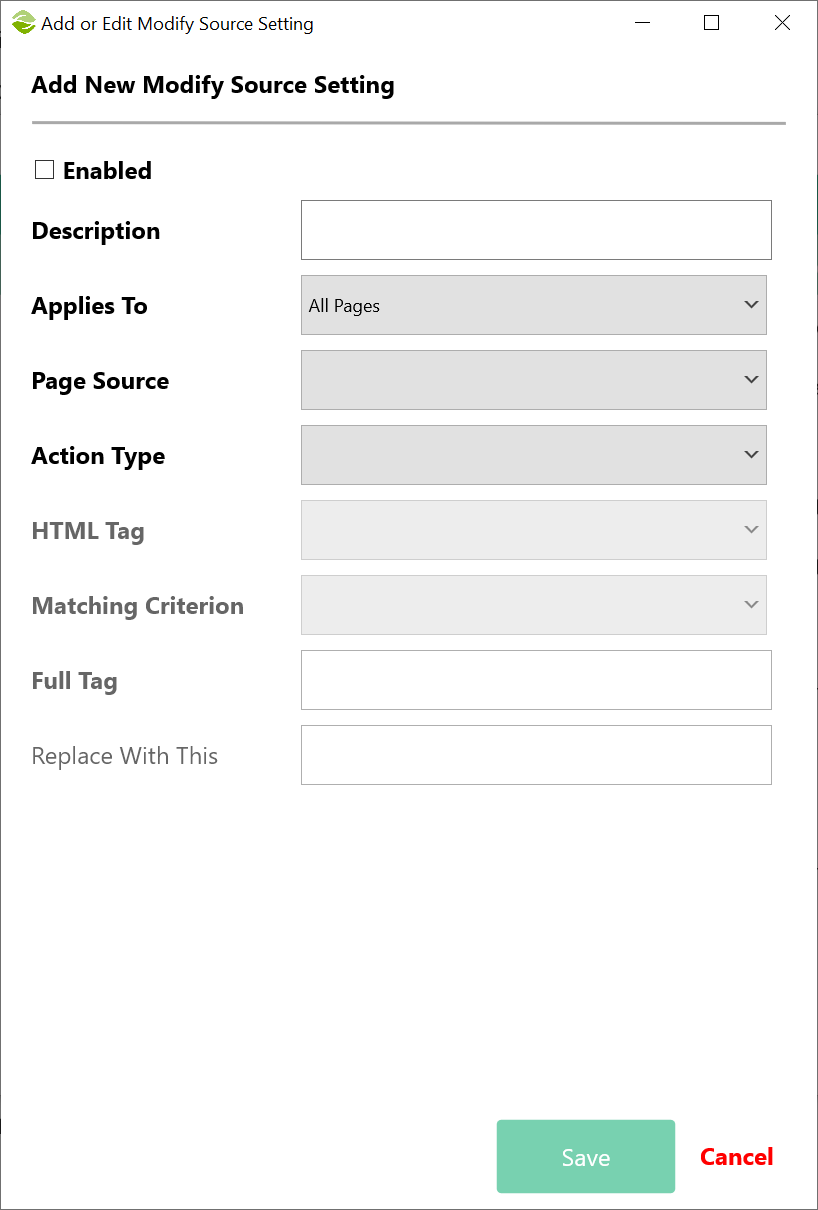
Options:
- Enabled: Activates or deactivates the rule
- Description: A human friendly description of the rule
- AppliesTo: Define what pages the rule is applicable to
- Page Source: Select the type of representation that the rule applies to
- Action Type: Determines what the rule will do from the following available options. All rules refer to HTML tags, the identifiers and the text in between the tags (e.g., <a href="#">Link</a>)
- Remove Tag: Identifies the tag that matches HTML Tag and Full Tag fields according to Matching Criterion and completely removes it
- Replace Tag: Identifies the tag that matches HTML Tag and Full Tag fields according to Matching Criterion and replaces it with the value in Replace With This field
- Replace Text: Identifies the tag that matches HTML Tag and Full Tag fields according to Matching Criterion and replaces the text with the value in Replace With This field (e.g., text Link in the above example)
- Remove Text: Identifies the tag that matches HTML Tag and Full Tag fields according to Matching Criterion and completely removes the text, leaving the tag empty (e.g., text Link in the above example)
- Remove Identifier: Identifies the tag that matches HTMl Tag and removes the identifiers from the tag that match Full Tag according to Matching Criterion. In Full Tag, you can add more than one identifiers separated by space (e.g., class id) or use the "*" wildcard (e.g., data-*)
- HTML Tag: Select the HTML that the rule applies to
- Matching Criterion: Equals To, Starts With, Contains, Ends With
- Full Tag
- Replace With This
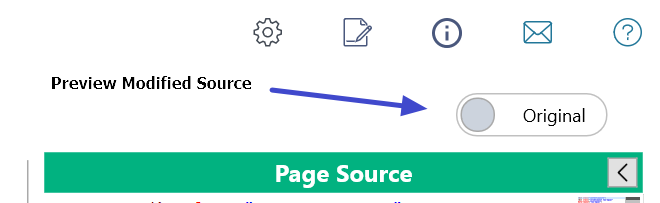
You can preview the difference between the original and modified source in the main screen using this switch
For a tutorial on using this feature to clean up HTML pages, see here
Created with the Personal Edition of HelpNDoc: Easily Add Encryption and Password Protection to Your PDFs